
The Status Report tool in CCL Access helps you monitor participant progress after invitations have been sent. It provides visibility into completion status, rater responses, and scoring readiness—along with tools to manage communications and deadlines.
Use this guide to understand how to interpret the Status Report and take action when needed.
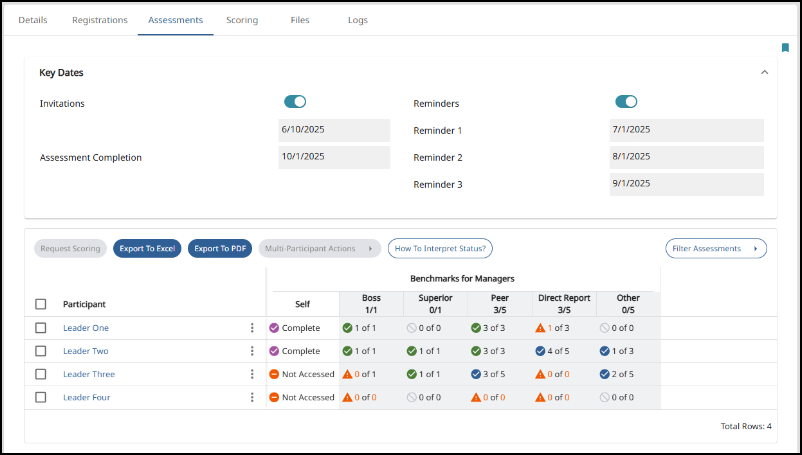
Understanding the Status Columns
The columns to the right of each participant’s name provide information on the completion status of the participant’s assessments, as well as the status of their rater surveys if they have a 360 assessment.
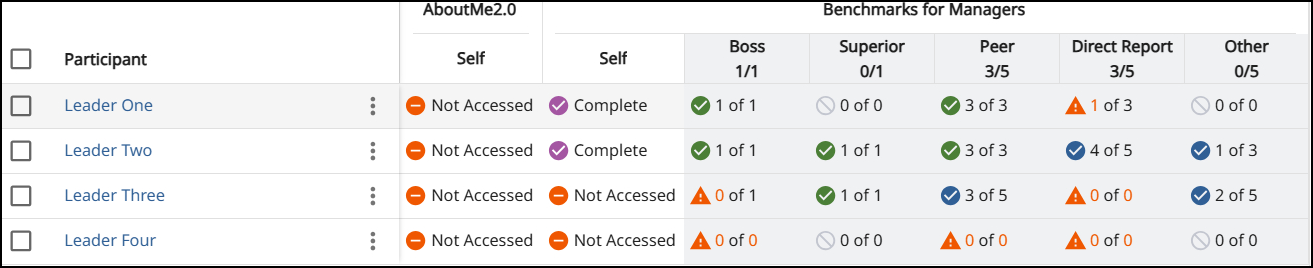
About Me Column
- Displays the status of the optional research demographic survey.
- This survey scores automatically.
- This column is hidden by default, and typically not something a client administrator needs to be concerned with.
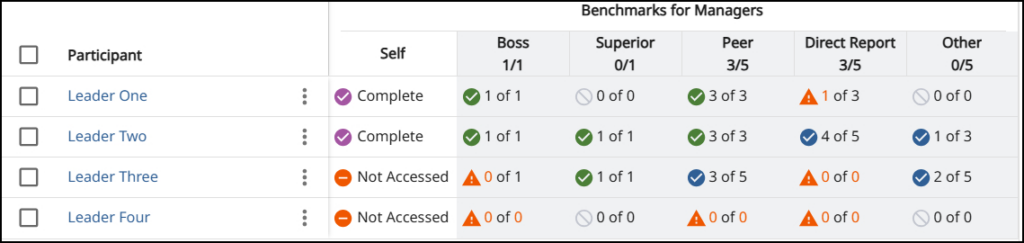
Self Column
Shows the status of the participant’s self-assessment.
Each rater category (e.g., Manager, Peer, Direct Report) includes:
- The required minimum number of responses
- The recommended number of responses
Example:
- Peers:
- 3 responses required (minimum for confidentiality)
- 5 responses recommended (for more robust feedback)
Meeting only the minimum ensures confidentiality. Meeting the recommended number provides stronger data and helps protect against last-minute non-completions.
4) Filtering assessments (focus your view)
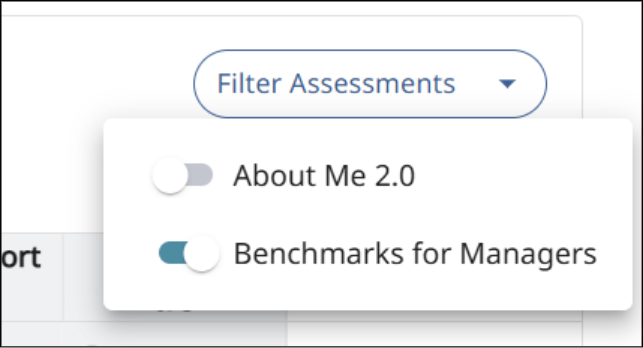
If your session includes multiple assessments, you can narrow what’s displayed:
- Select Filter Assessments.
- Toggle off assessments you want to hide.
This helps you focus on a specific assessment such as a 360.
5) Interpreting rater status indicators
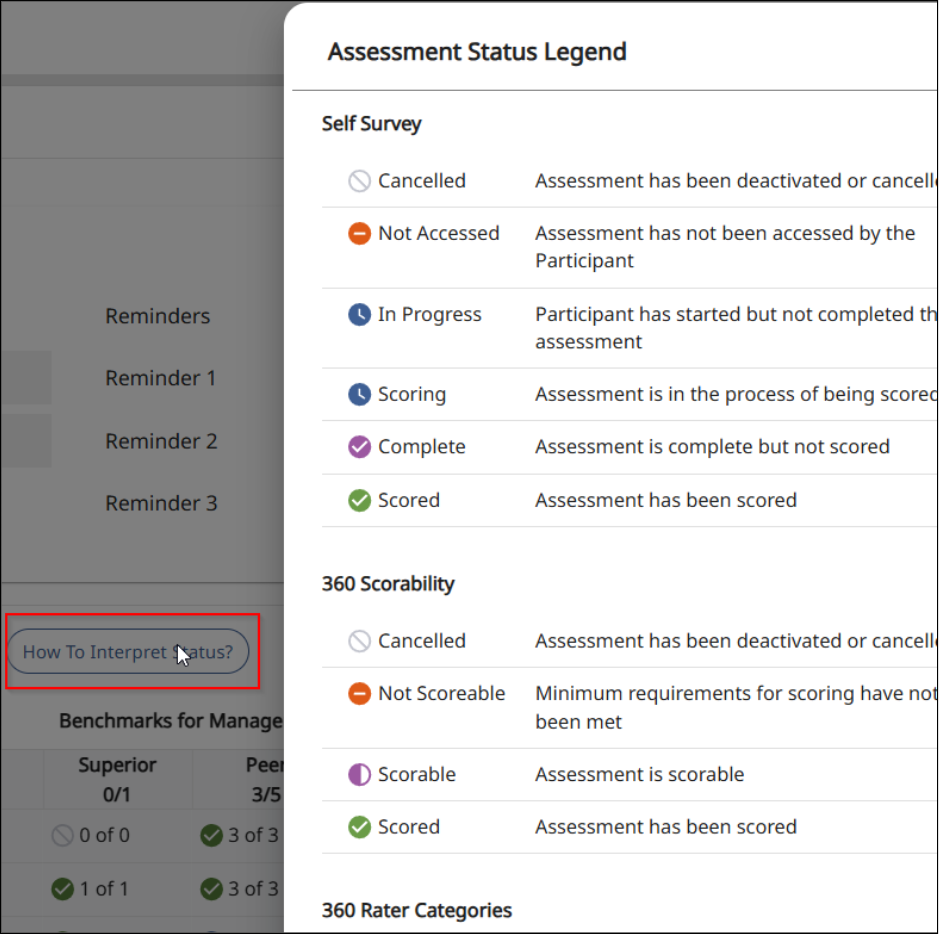
Status symbols in each rater category help you quickly understand whether you have enough rater input to proceed.
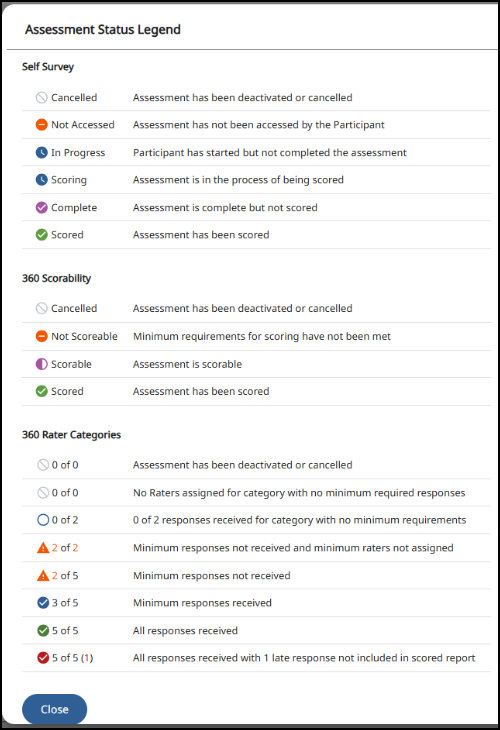
Use the built-in legend
Click How to Interpret Status to view the legend and learn what each symbol means.
What to look for
- Compare the symbols in each rater category to the legend to see how many responses are still needed.
- Caution symbols indicate that the minimum number of responses has not been received yet.
6) Participant-level tools (menu next to the participant name)
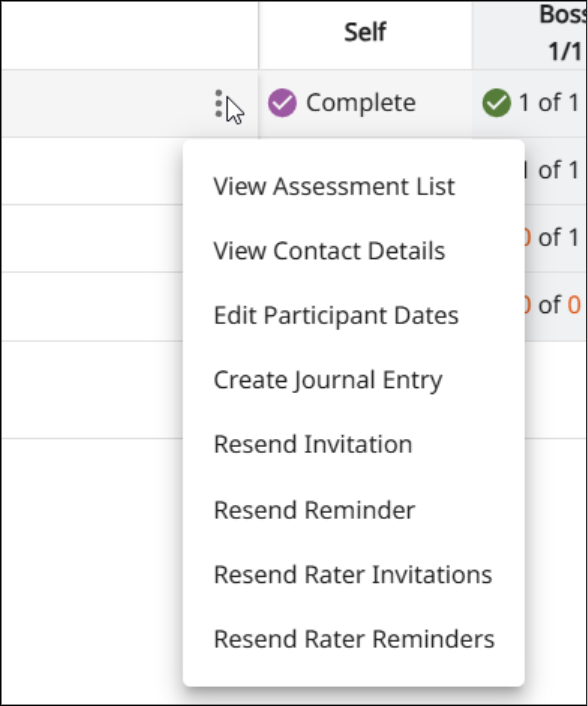
For actions on one individual participant, click the menu icon in the participant’s name box.
A) Participant Dates
- Displays key dates relevant to that participant.
- You can adjust the participant’s session expiration date using the calendar control.
When to use:
Extend an expiration date if a participant is missing raters you still want included.
B) Journal (internal notes)
- Add notes about the participant or your interactions.
- Includes a drop-down with suggested starter notes.
- Participants do not see these notes.
C) Communication options
- Resend invitations to participants and/or raters.
- Send reminders to raters.
Important behavior:
Reminders are not sent to any rater who has already completed surveys for the participant.
7) Multi-Participant Actions (bulk updates)
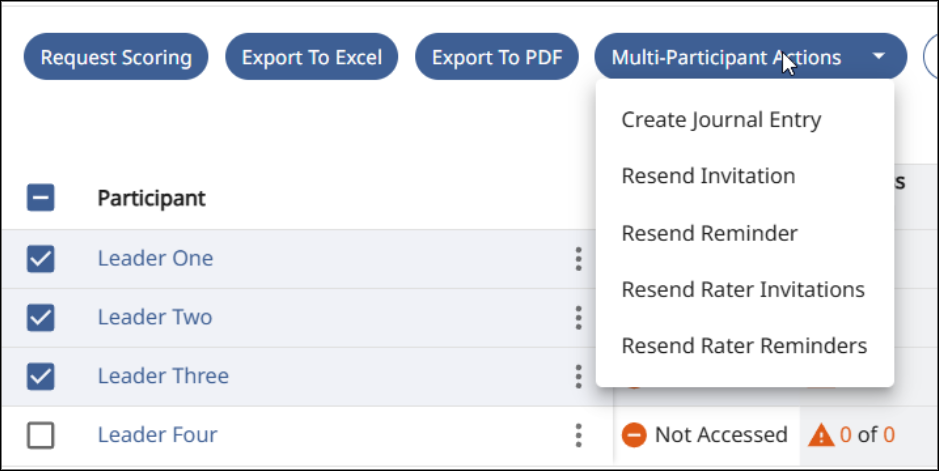
To perform the same action for several participants at once:
- Check the boxes next to the participants.
- The Multi-Participant Actions button activates.
- Choose the tool/action you want and apply it to all selected participants.
This is useful for bulk reminders, bulk resends, or consistent date adjustments—depending on what options are available in your system configuration.
8) Practical workflow (recommended)
- Filter to the assessment you want to manage (e.g., 360).
- Scan Scorability for who is Scorable vs Not Scorable.
- Use How to Interpret Status to quickly identify which rater groups are under minimums (look for caution symbols).
- Use Communication options to resend invites or send reminders (individually or via Multi-Participant Actions).
- Use Participant Dates to extend deadlines when needed.
- Use Journal to document follow-ups, exceptions, or special handling (internal-only).
9) FAQ / Troubleshooting
“Why is someone ‘Not Scorable’?”
“Not Scorable” means the participant does not meet minimum response requirements needed for report creation. Review rater status symbols and required counts to identify what’s missing, then send reminders/resends as appropriate.
“I sent reminders—why didn’t some raters receive them?”
The system does not send reminders to raters who already completed the survey for that participant.
“Can participants see my Journal notes?”
No—Journal notes are internal; participants do not see them.
“Can I extend the deadline for only one participant?”
Yes—use Participant Dates from the participant menu and change the expiration date using the calendar.
Glossary (quick reference)
- Scorability: Whether the participant has sufficient minimum data for report creation (e.g., Scorable/Not Scorable).
- Required vs Recommended: Required is the confidentiality-safe minimum; recommended provides stronger feedback and protects against late/non-responders.