
Overview
The Scoring module allows you to generate assessment reports based on participant responses and selected raters. This article explains:
- How scoring works
- Scoring eligibility requirements
- How to request scoring
- Important rules and system behaviors
Key Scoring Rules & Requirements
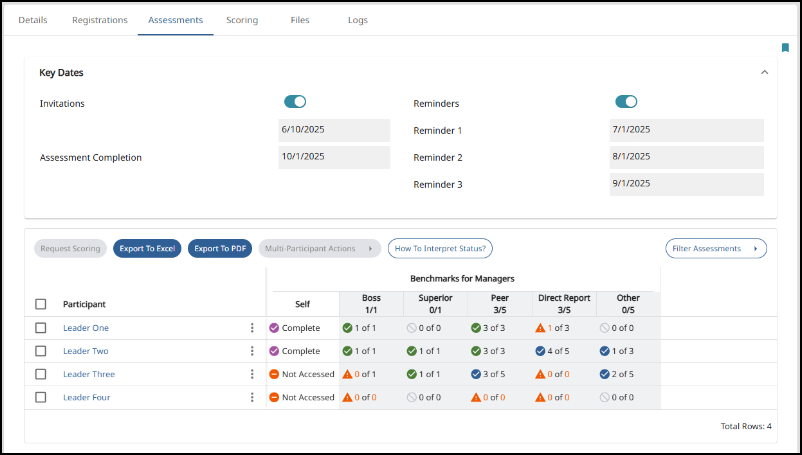
Before requesting scoring, check the status report and ensure the following conditions are met:
✅ Minimum Requirements
- A self-assessment form must be submitted
- At least four rater responses must be completed
⚠️ Important Rules
- Scoring can only be requested once
- This protects the anonymity of raters
- Re-scores require a support ticket and may include a fee
- Adequate rater participation is critical
- More responses = more meaningful and accurate reports
Understanding Scoring Readiness
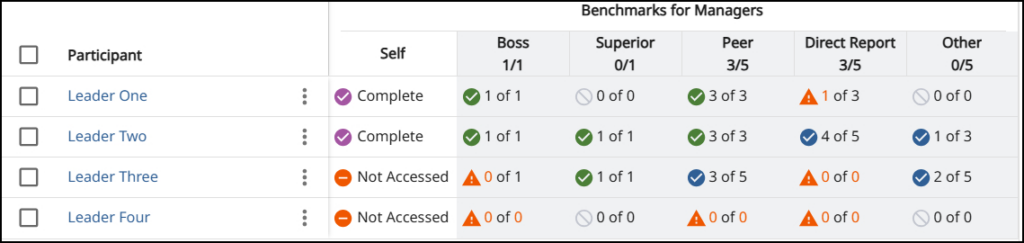
The system provides indicators to help determine if a participant is ready to be scored:
✅ Ready to Score
- Self-form is submitted
- Minimum rater requirements are met
- Status indicators appear as green or blue
⚠️ Use Caution
- Warning or caution icons indicate incomplete data
- Missing rater groups (e.g., direct reports) may affect report detail
- Example: Even with enough raters submitted, some breakdowns (like direct reports) may not appear if responses are missing
💡 Best Practice
- Send reminder notifications to raters before requesting scoring if responses are incomplete
How to Request Scoring
Follow these steps to submit a scoring request:
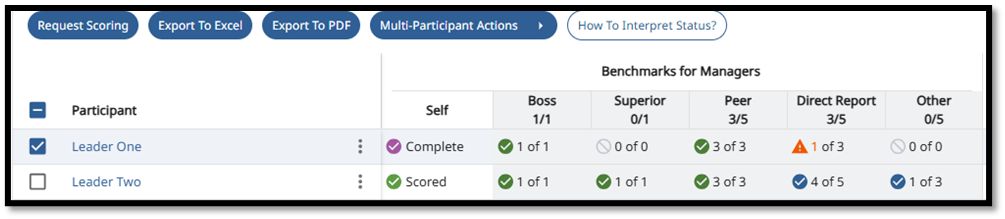
- Select the Participant
- Locate the individual and check the box next to their name
- The Request Scoring button will activate
- Open the Scoring Form
- Click Request Scoring
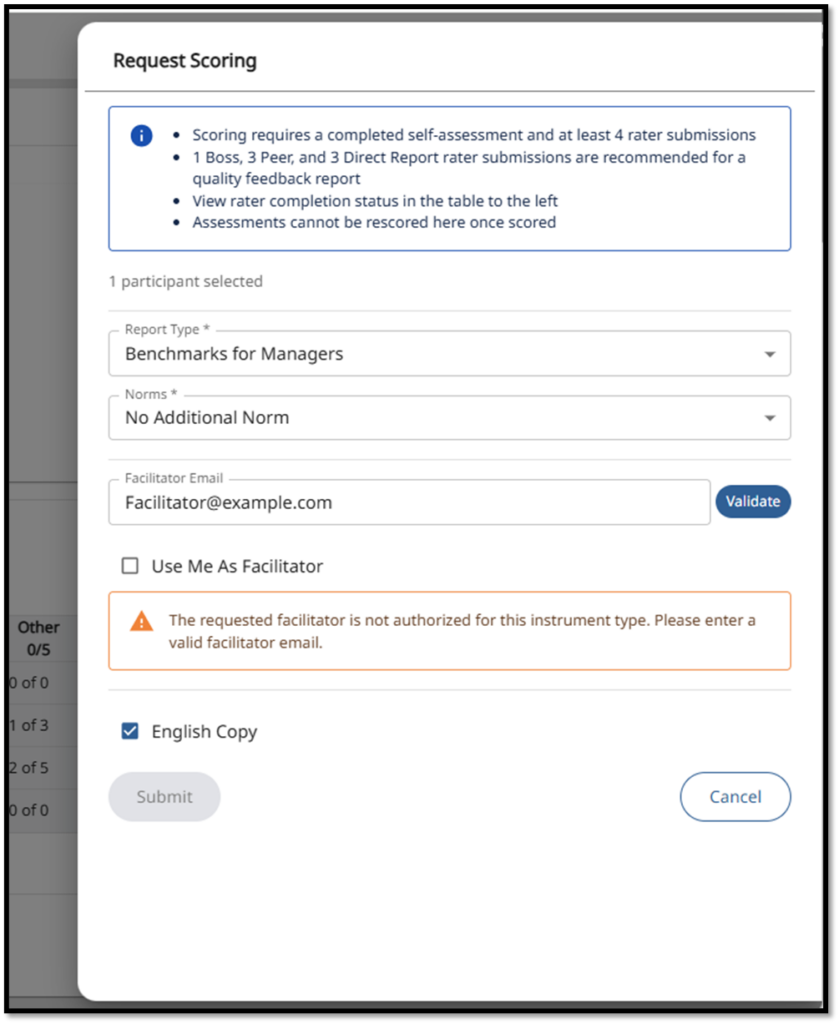
- Review Scoring Rules
- Confirm eligibility details shown at the top of the form
- Configure Scoring Options
- Select applicable benchmarks (e.g., Manager benchmarks)
- Optionally include regional norms (e.g., country-specific comparisons, if relevant)
- Provide Certification Details
- Required to generate feedback reports
- If you are certified:
- Select yourself
- If not:
- Enter the facilitator’s email address
- Validate Certification
- Click Validate
- Correct any errors (e.g., invalid or misspelled email)
- Language Option
- If the self-form was completed in another language:
- The report will default to that language
- Select the option to also receive an English version, if needed
- If the self-form was completed in another language:
- Submit the Request
- Click Submit
- The system will process the request
After Submission
- The participant status will update to Scored
- A notification email is sent to the facilitator
- The facilitator is responsible for releasing the report to the participant
Best Practices for Successful Scoring
- Ensure all required forms are completed before submitting
- Monitor caution indicators and incomplete rater groups
- Encourage timely rater responses with reminders
- Double-check certification details before submission