
The Inventory module allows Client Administrators to track assessment quantities, monitor usage, and determine when additional assessments need to be ordered.
Accessing the Inventory Module
- Sign in to the Access application.
- Select Inventory from the left navigation menu.
Inventory Overview
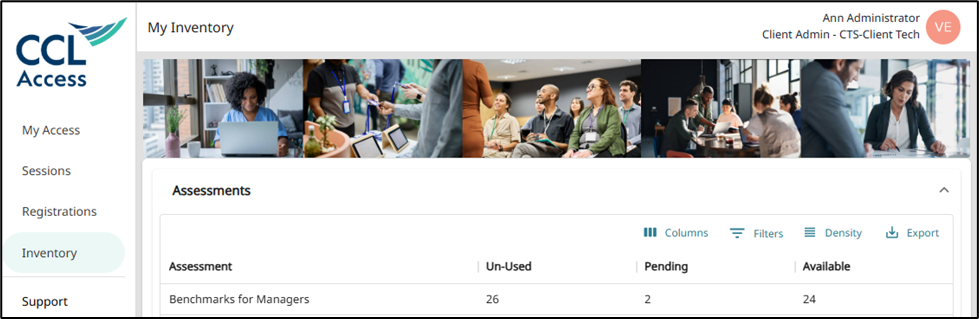
The Inventory module has two sections: Assessments and Orders.
The Assessments section shows you how much inventory for each assessment type you have in your account.

In the columns next to each assessment you will see the following counts:
- Unused – Assessments not yet assigned
- Pending – Participants registered but not yet invited
- Available – Remaining assessments that can still be assigned
These values update automatically as participants move through the registration and invitation process.
You must purchase additional assessments when the Available count reaches zero.
New participants cannot be registered until more inventory is added.
The Orders section allows you to see specific purchase orders and see the specific participants registered to an assessment in that order.

To see who has been registered or invited from a specific order:
- Open the Inventory module.
- Click the Order Number you want to review.
- A list of participants associated with that order will appear.
This helps you track usage and confirm which participants are tied to each purchase.
By default, only orders with remaining inventory are displayed.
To view completed orders:
- Locate the Show 0 Quantity Orders toggle
- Enable the toggle to include orders with zero remaining inventory.
This allows you to review historical usage and participant activity.